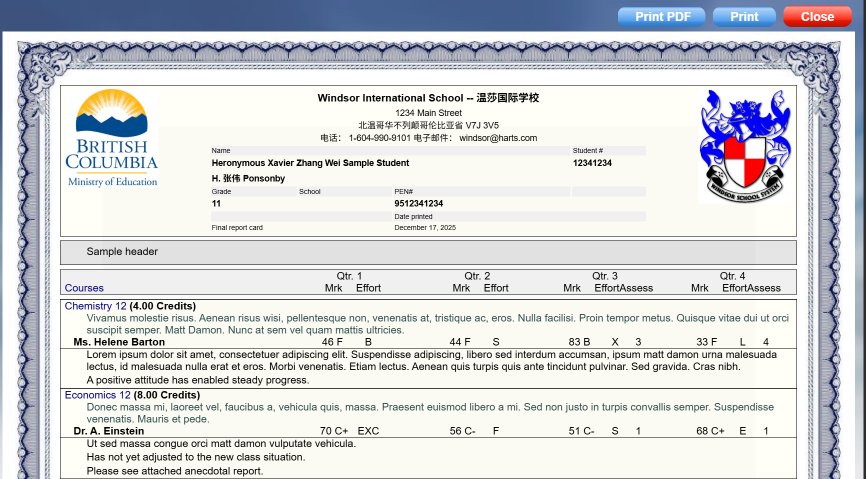
There are new functions and options in WebTess Report Cards
In WebTess, go to Grades, Setup, Report card setup, and click the Borders tab:
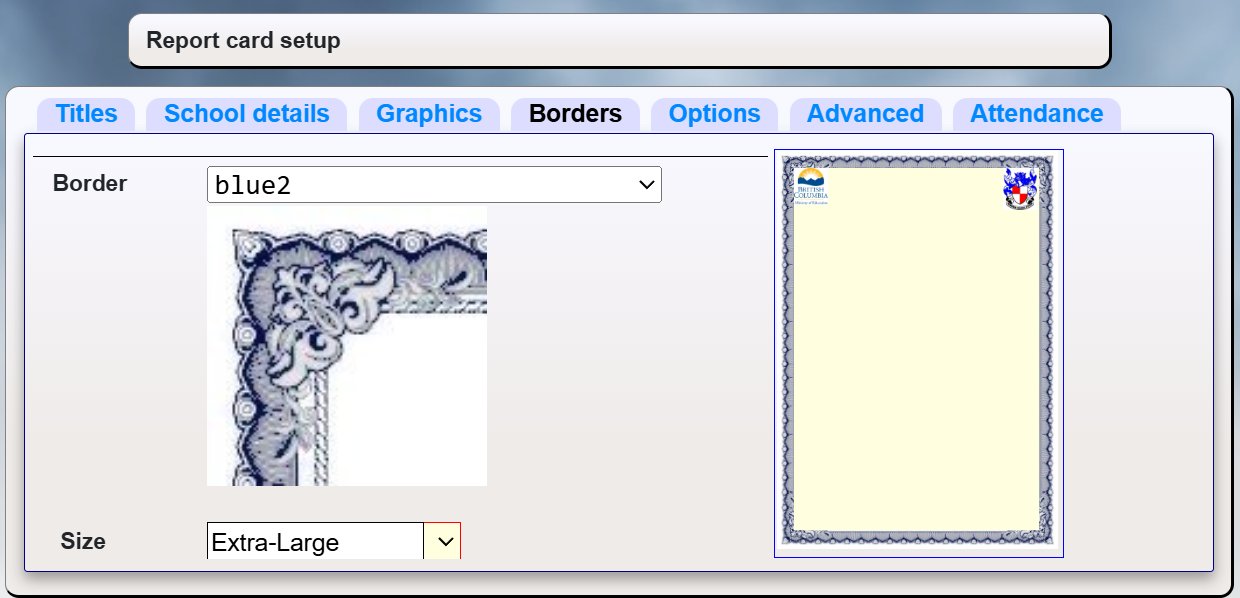
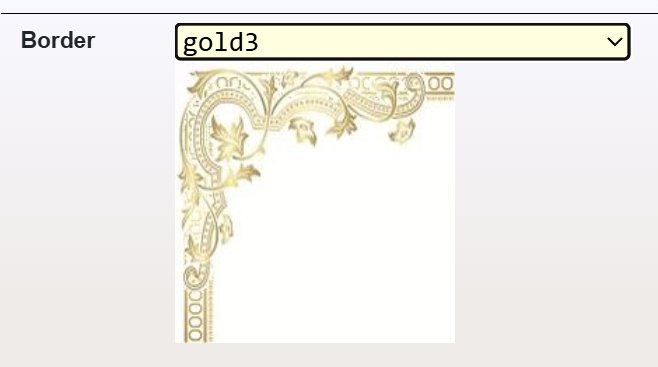
Use the drop-down list to select a border style, and you will see how it looks in the preview window:
Click the School details tab:
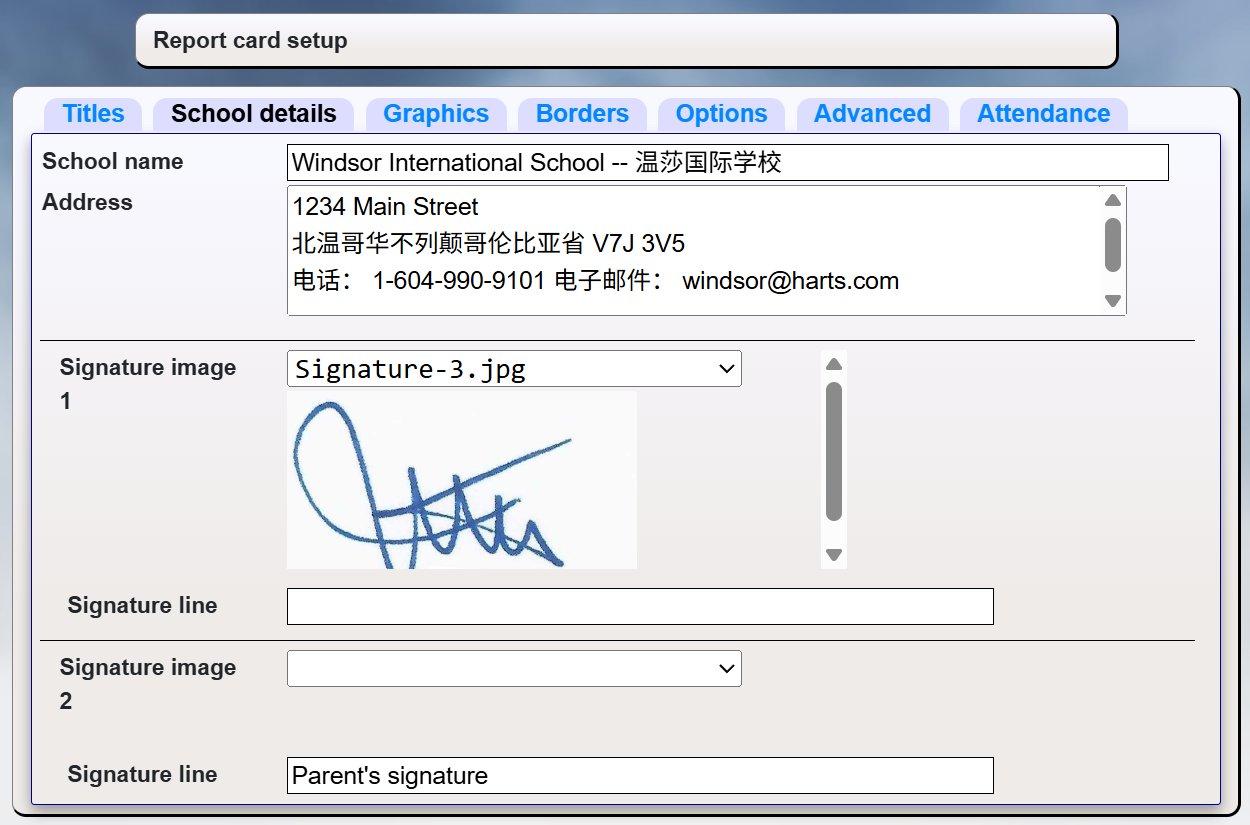
You can enter the details for your school, and also upload images for optional signatures.
Click the Graphics tab:
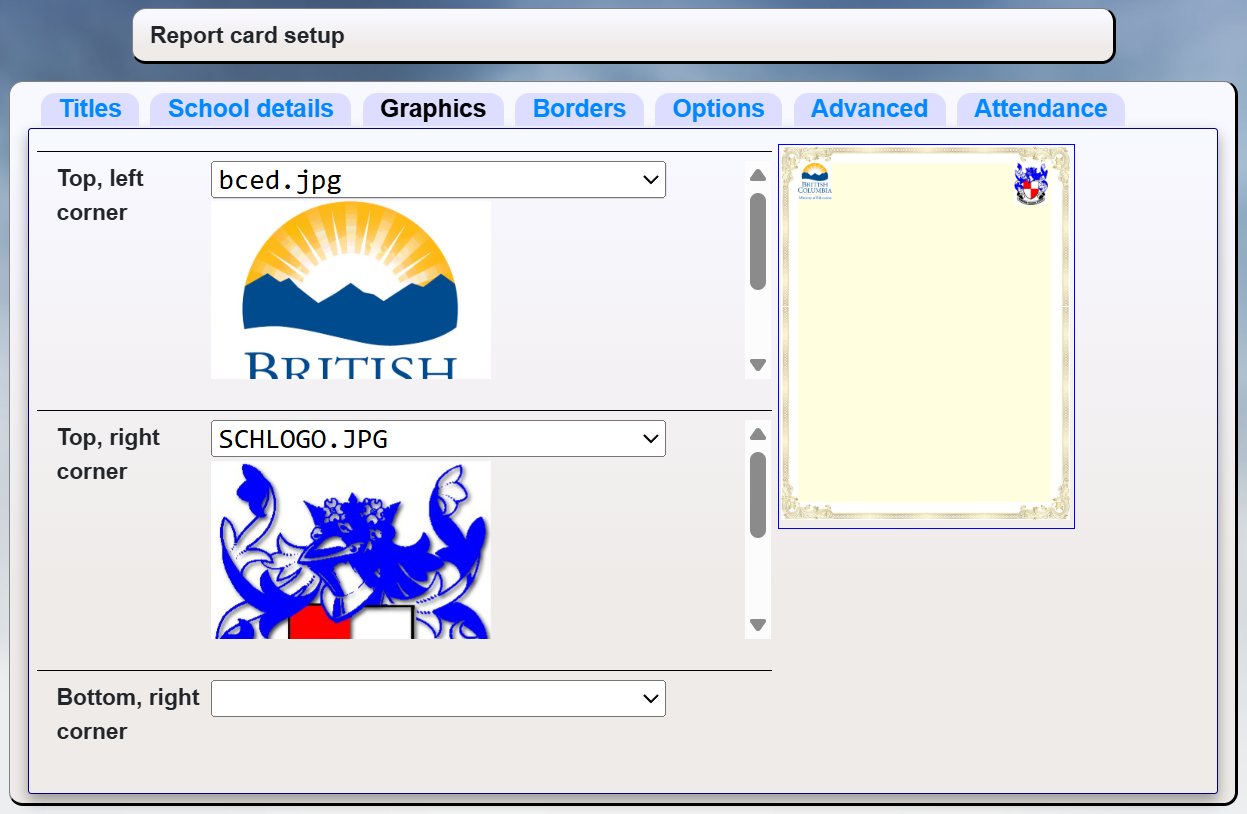
Here you can select images which can be printed in each corner of the report card.
To upload images, go to Utilities, Images and Student Photos, Upload images…
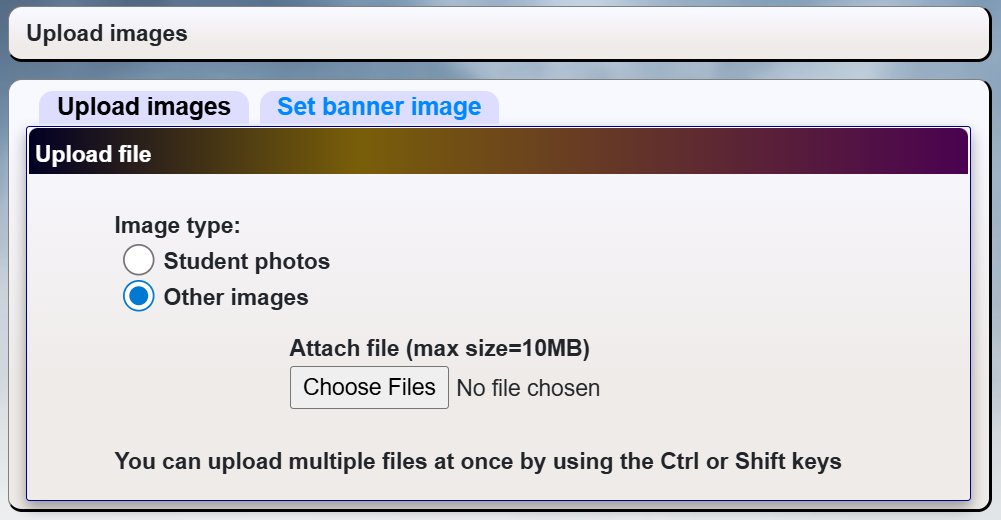
Select Other images, then click Choose files to upload any JPG, PNG or BMP images you want to use.
Click the Preview button at the bottom of the screen to see a sample of the report card: